AUCTION COMPANION
QUICK START GUIDE
This guide will review how to set up and use the Auction Companion.
Updated: 10 August 2026
1. Create New Auction Draft Kit
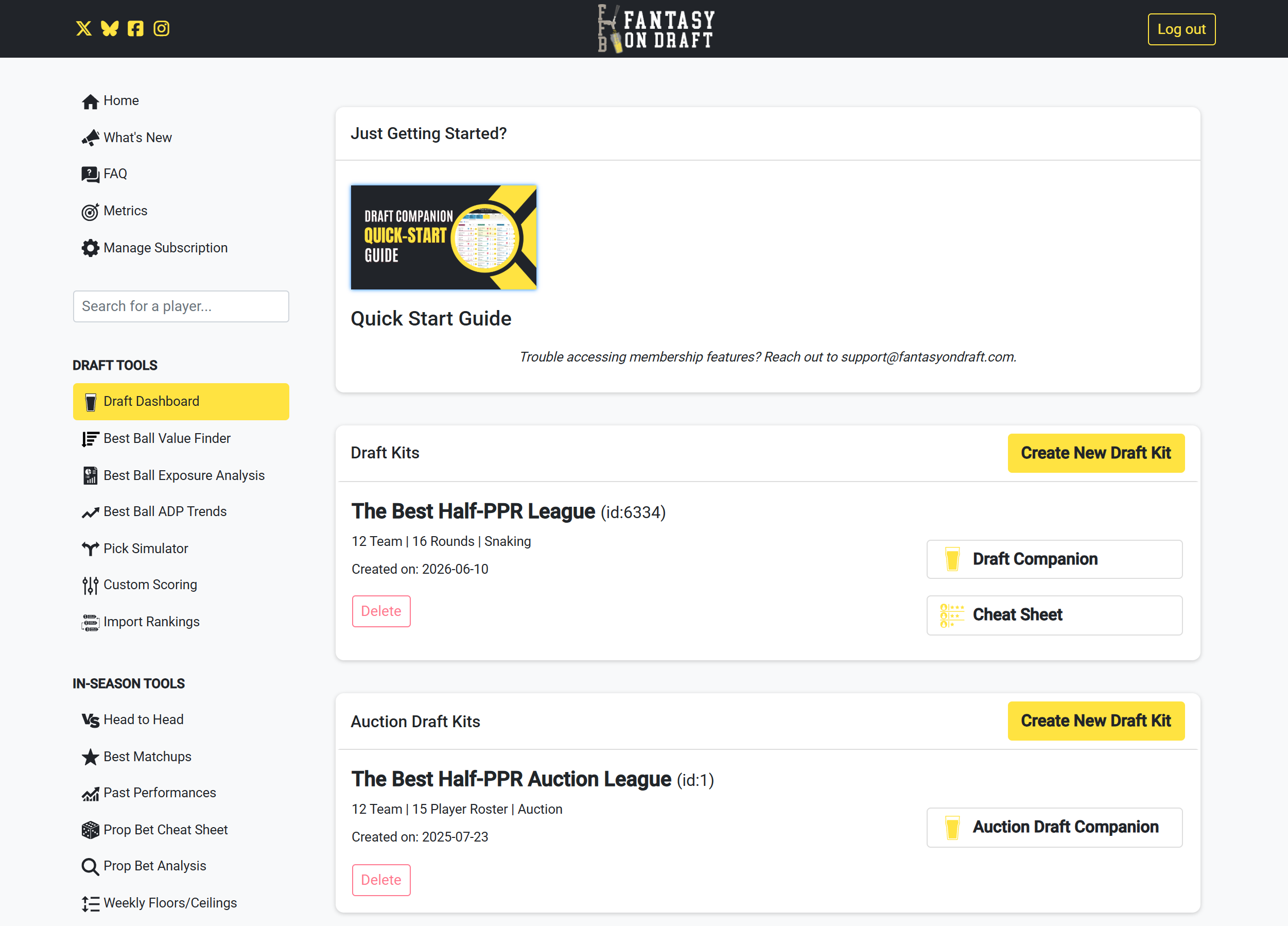
Setting up a new auction draft kit is quick and easy. From the Draft Dashboard, scroll to the Auction Draft Kit section and select the button to bring up a window with basic settings.
2. Basic Settings
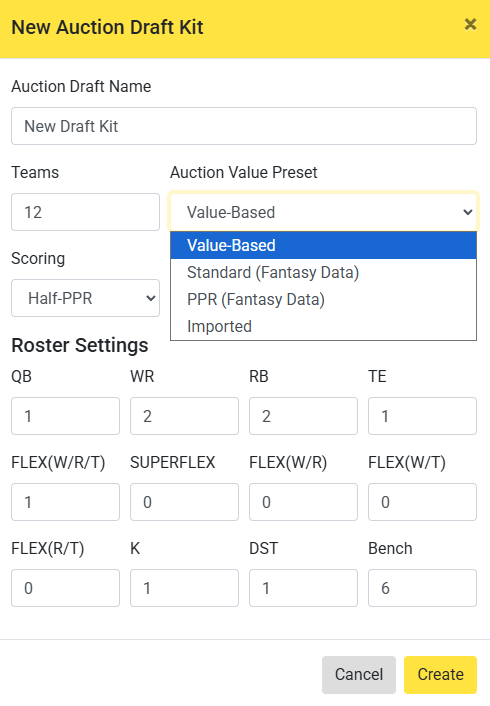
To create a new draft kit, you will need the following details:
- Draft name
- Number of teams
- Scoring settings: Standard, PPR, Half-PPR, Custom, or Imported
- Roster settings: starting positions and bench spots
- Auction Value settings: Value-based (uses value baselines to calculate), Standard (Fantasy Data), PPR (Fantasy Data), Imported
Select the button to generate a new auction draft kit and load the Draft Kit View.
3. Header and Draft Ticker
Once the Auction Companion loads, you will see a header across the top of the page with three buttons:
- The Back button will return you to the Draft Dashboard.
- The Depth Chart button opens a window with depth charts for each NFL team.
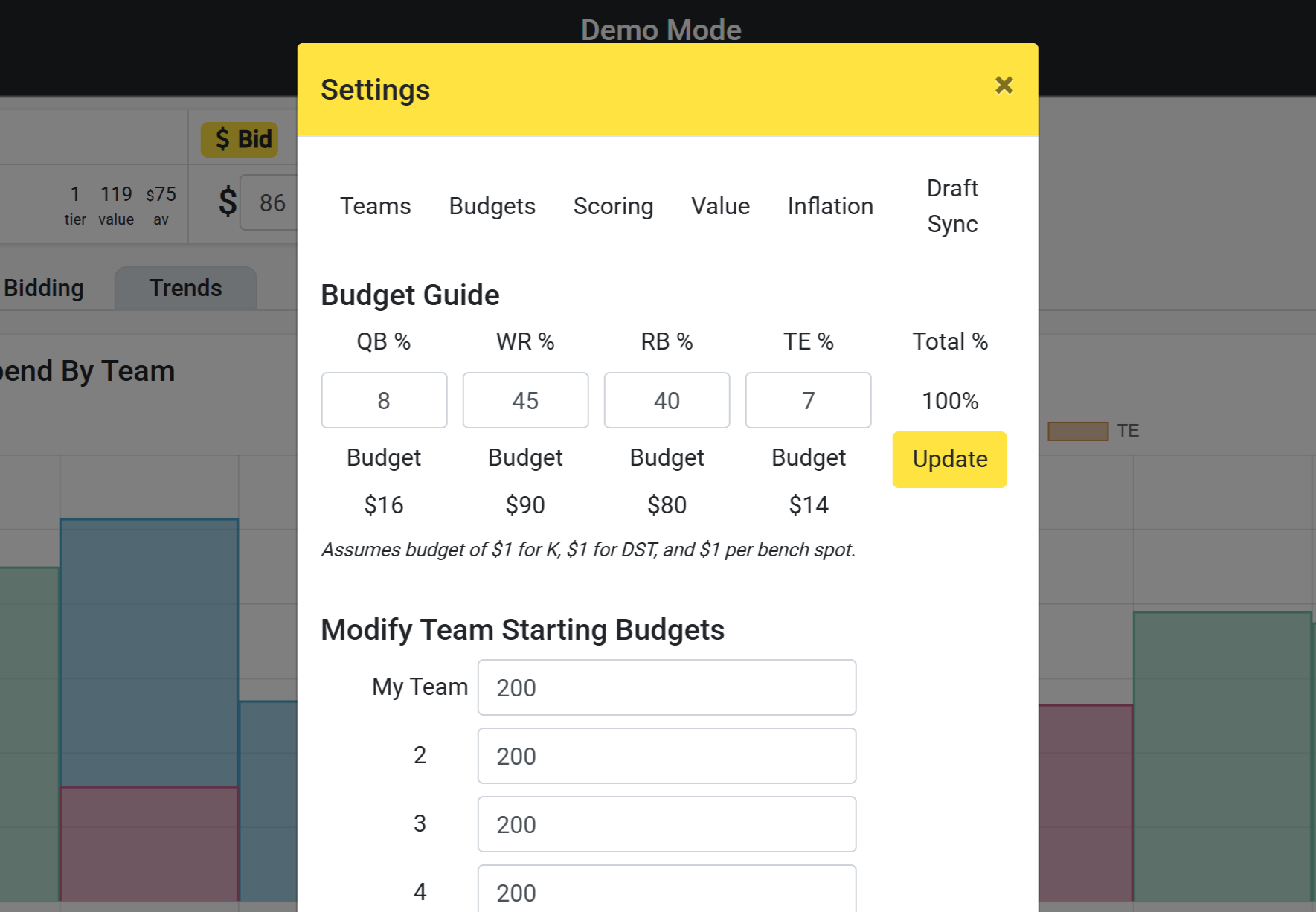
- The Settings button opens a window with Team, Budget, Scoring, Inflation, and Value settings.

4. Additional In-Draft Settings
Select the Settings button to adjust additional draft settings:
- Team Names
- Budget Guide and Team Budgets
- Scoring settings Premium
- Value over replacement baselines Premium
- Inflation Premium
- Draft Sync (Sleeper) Premium
Get Access to Custom Scoring, Custom Value Baselines, Inflation Settings, and Draft Sync!
5. My Team, Players, and History
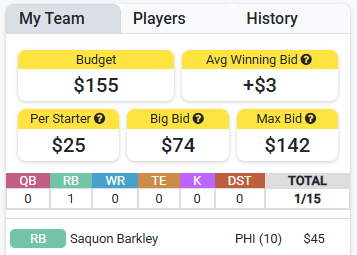
The My Team tab contains a list of winning bids associated with your team.
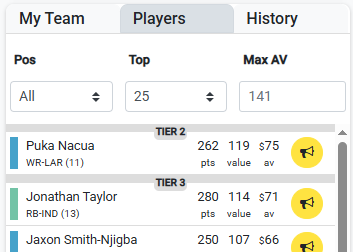
The Players tab, on the left side of the page, contains a searchable list of all players that can be filtered by position and/or maximum auction value (av).
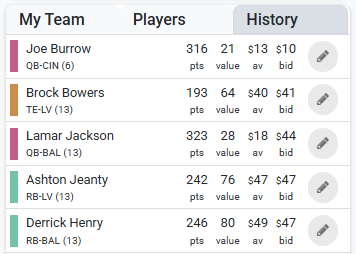
The History tab contains a list of all winning bids. You can also edit or remove bids from this tab.
6. Nominating Players
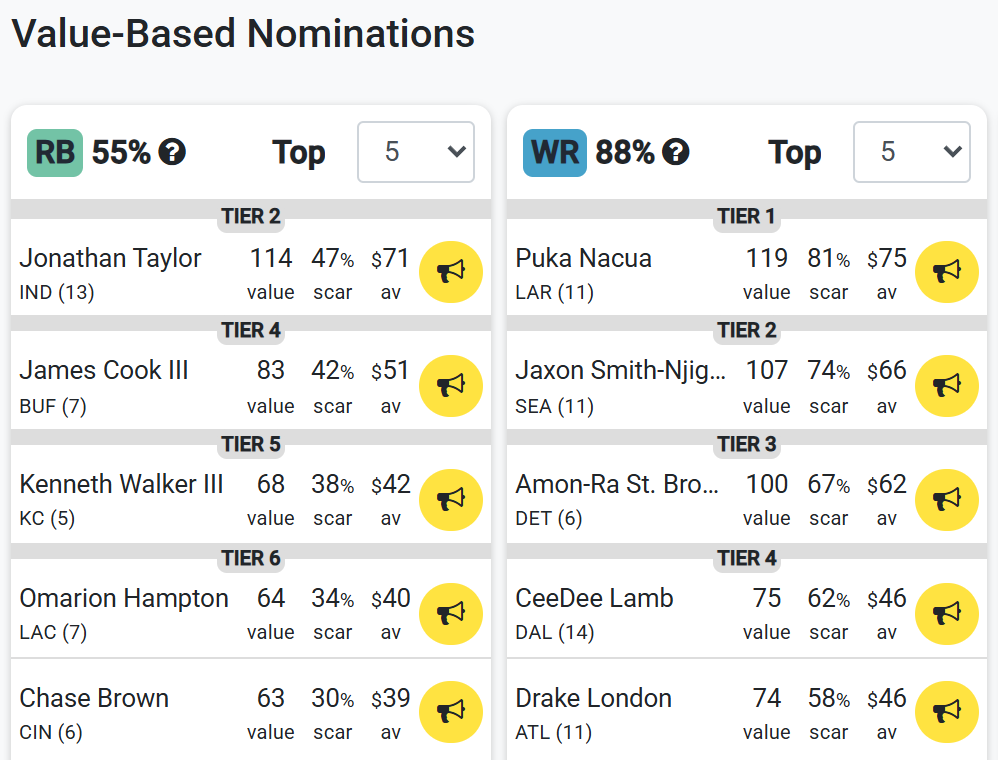
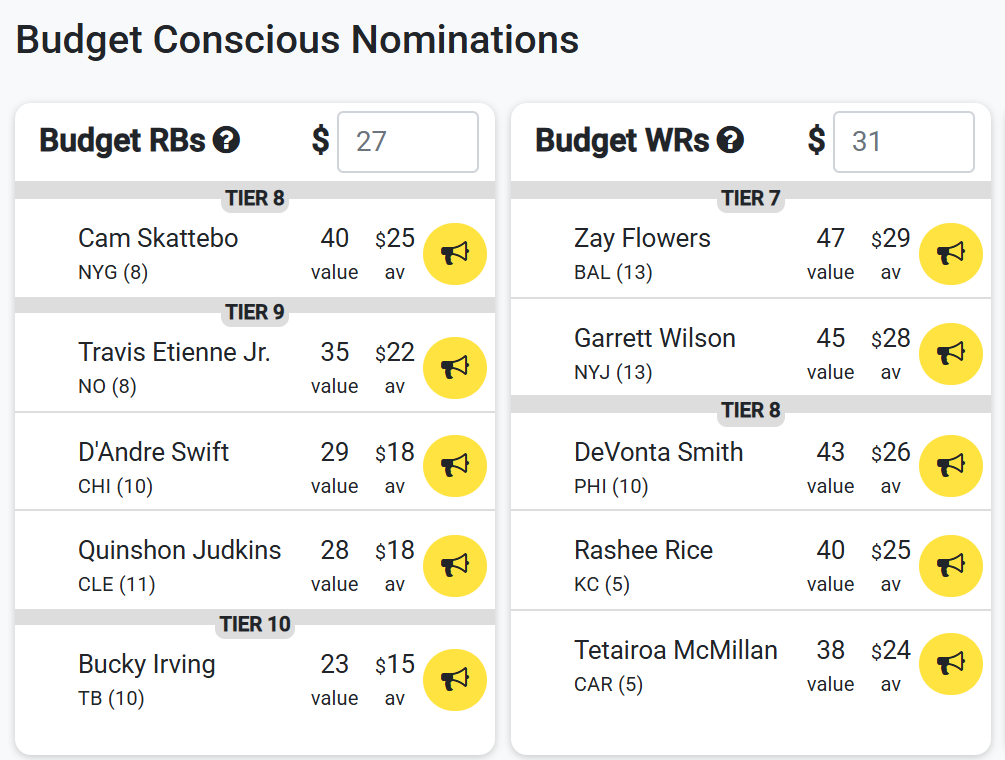
The Nominate section presents two sets of player lists: one focusing on value and one focusing on budget.
Select the Nominate button to start the bidding process for a player.
You can also nominate players via the Players tab on the left side of the page.
7. Bidding
After selecting the Nominate button to start the bidding process for a player, the player will appear in the Nomination area, and the current bid will be automatically updated to the generated auction value (av) of the player.
Manually update the current bid, select the winning team from the dropdown, and select the button to confirm a winning bid.


8. Bid Smart
The Bidding section has the following sub-sections to help optimize and expedite the bidding process.
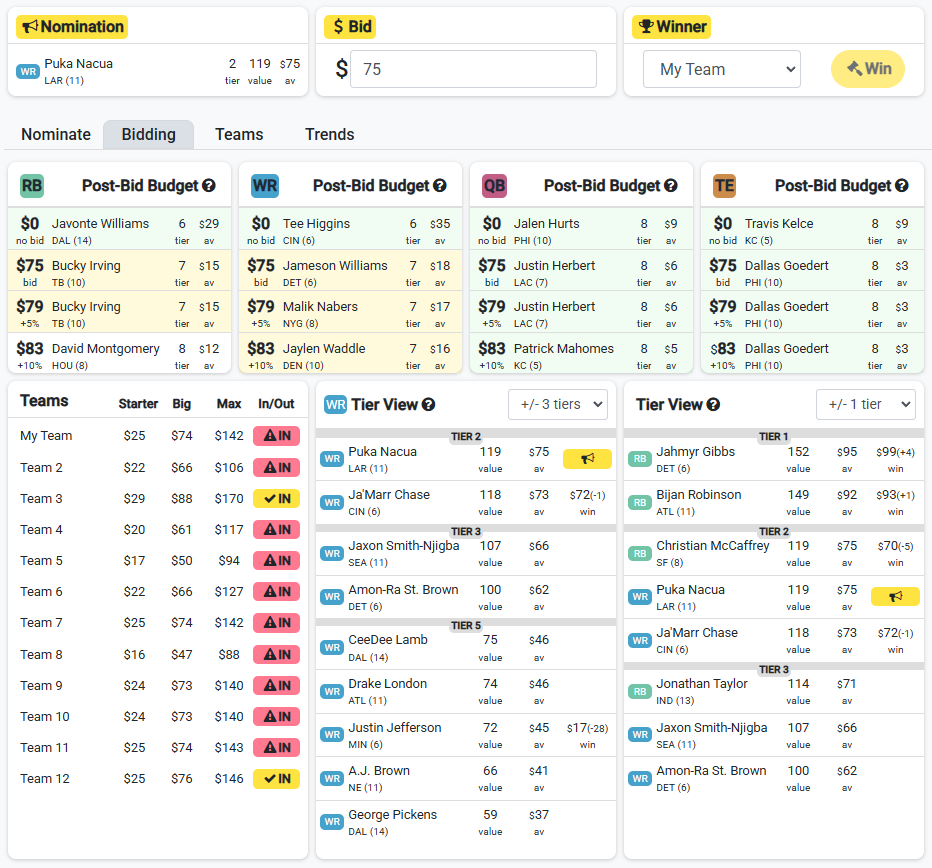
- Post-Bid Budgets - Shows top available player at each position if you win at the current bid, the current bid + 5%, the current bid +10%, or no bid.
- Teams - Shows average budget per remaining starter needed, big bid, max bid, and whether each team is realistically in or out at the current bid.
- Positional Tier View - Shows similar available and unavailable players of the same position with auction values and winning bids.
- Tier View - Shows similar available and unavailable players of all positions with auction values and winning bids.